So that's how to move your image. In part 3, we'll look at sprites and saving. (C) 2011, Chris Read (VirtualChris) updated 11-25-2025.
Note. This page is under construction.
So, you've read the Virtual Boy Homebrew Document and you want to learn some more? Great! While I may not exactly be the best one to be teaching this, nobody else seems to want to go to great lengths to do this, so I'll do it.
Suppose your picture is in the 31st world. First off, you need to make some variables to tell the VB where the picture is in correlation with the screen. To do that, type in this at the beginning of the code, after the main title:
int picturex=0, picturey=0;
There. You have just named two integers picturex and picturey. Now, they're set at the upper left hand corner. To use these, put them in your world thingy like so:
vbSetWorld(31, WRLD_ON, picturex, 0, picturey, 0, 0, 0, 384, 224);
But why seperate the x and y with a zero? The first zero is there to tell you how far to display the image. If you want it in back, change it to something like -2, or, if you want to move it forwards, change it to something like 2. Pretty neat, huh? Well, anyway, back to the moving picture.
if(vbReadPad()&K_LR) movethingtimer++;
if ((movethingtimer>30) && (picturex<384) && (vbReadPad()&K_LR)) picturex++, movethingtimer=0;
if(vbReadPad()&K_LL) movethingtimer++;
if ((movethingtimer>30) && (picturex>0) && (vbReadPad()&K_LL)) picturex--, movethingtimer=0;
if(vbReadPad()&K_LD) movethingtimer++;
if ((movethingtimer>30) && (picturex<224) && (vbReadPad()&K_LD)) picturey++, movethingtimer=0;
if(vbReadPad()&K_LU) movethingtimer++;
if ((movethingtimer>30) && (picturey>0) && (vbReadPad()&K_LU)) picturey--, movethingtimer=0;
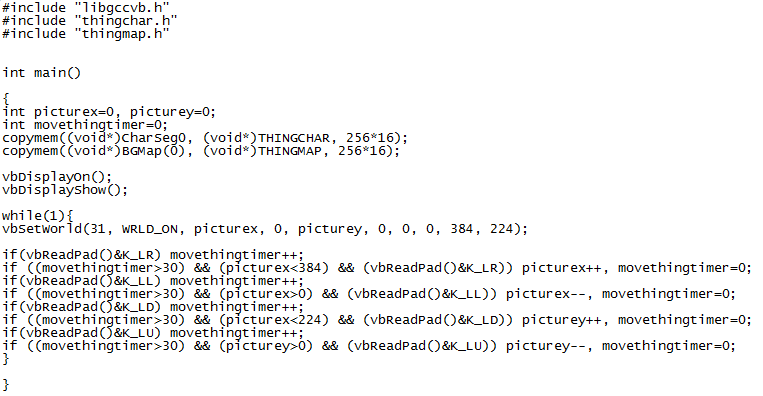
The code explained: K_LR is left d-pad right. If you wanted to make it move the right control pad, replace the L with an R. Well, you will probably guess then that L is left, D is down and U is up, but why add a movethingtimer thing? Well, that slows down the movement of the picture. Without it, it would move way too fast. I took the liberty of adding (picturex<384) et al. so the picture would always stay in view. So, what does our code look like now? This:
So that's how to move your image. In part 3, we'll look at sprites and saving.
(C) 2011, Chris Read (VirtualChris) updated 11-25-2025.